


-
Table of Contents
- How to Take Advantage of the New Block Editor in WordPress 6.2
- Exploring the New Features of the WordPress 6.2 Dashboard
- What’s New in WordPress 6.2: Improved Security and Performance
- How to Use the New WordPress 6.2 Media Library
- Exploring the New WordPress 6.2 Theme Customizer
- What’s New in WordPress 6.2: Improved Accessibility Features
“Unlock the Power of WordPress 6.2 – Take Your Site to the Next Level!”
WordPress 6.2 is the latest version of the popular content management system. It brings a number of new features and improvements to the platform, making it easier to use and more powerful than ever before. This version includes a new block editor, improved media library, and enhanced security features. Additionally, it includes a number of new APIs and developer tools to make it easier for developers to create custom solutions. With WordPress 6.2, users can create more engaging content, manage their websites more efficiently, and keep their data secure.
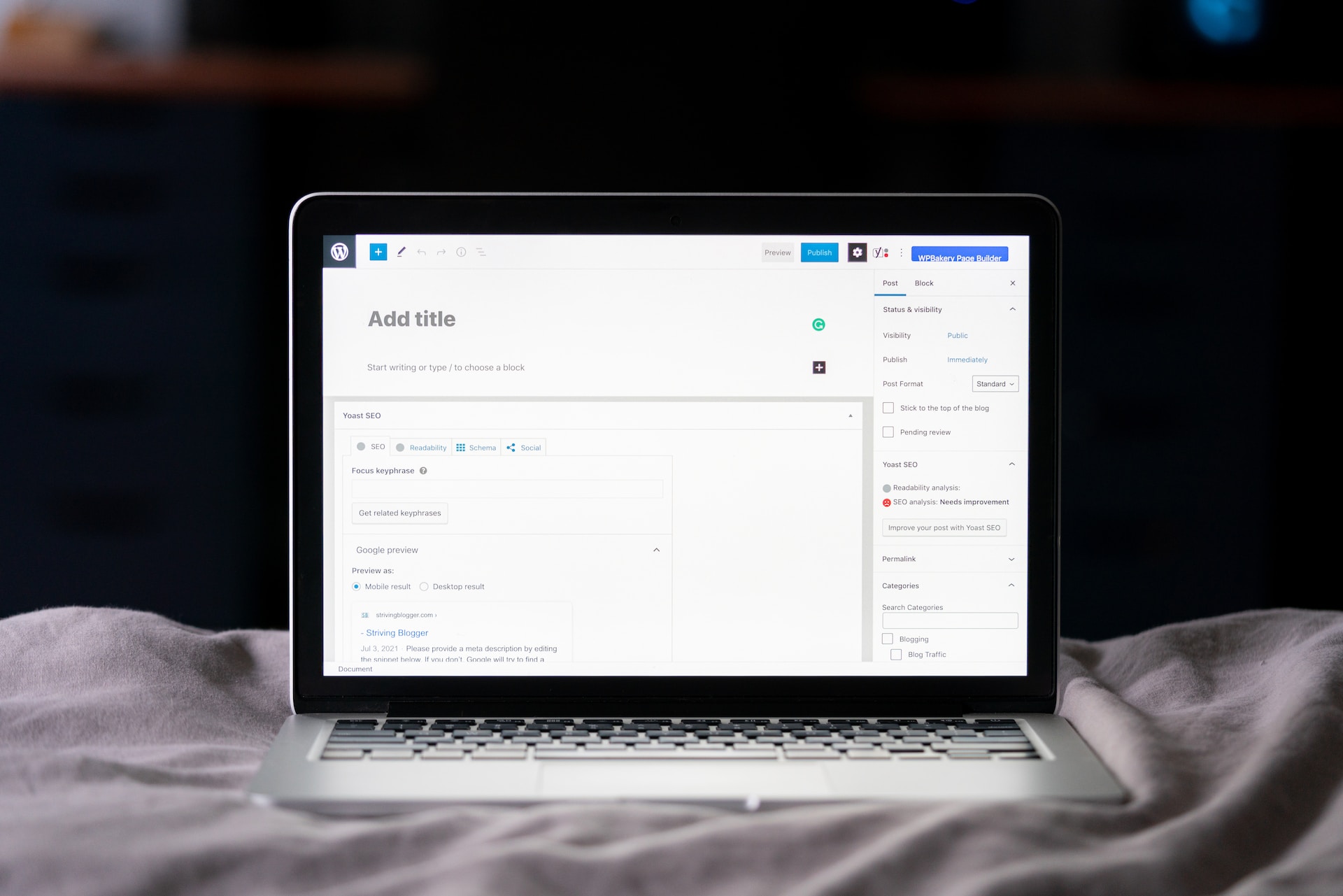
How to Take Advantage of the New Block Editor in WordPress 6.2
The new block editor in WordPress 6.2 is a powerful tool for creating content. It allows users to create content quickly and easily, with a wide range of customization options. Here are some tips for taking advantage of the new block editor:
1. Get familiar with the block editor interface. The block editor is organized into two main sections: the content area and the sidebar. The content area is where you will create and edit your content, while the sidebar contains all the settings and options for customizing your content.
2. Explore the available blocks. The block editor comes with a wide range of blocks, from basic text blocks to more advanced blocks like galleries and columns. Take some time to explore the different blocks and see which ones you can use to create the content you want.
3. Take advantage of the customization options. The block editor allows you to customize your content in a variety of ways. You can change the font size, color, and alignment of text blocks, add images and videos, and even embed content from other websites.
4. Use the preview feature. The block editor has a preview feature that allows you to see how your content will look before you publish it. This is a great way to make sure your content looks the way you want it to before you publish it.
By taking advantage of the new block editor in WordPress 6.2, you can create content quickly and easily, with a wide range of customization options. With a little practice, you can become a master of the block editor and create content that looks great and is easy to read.
Exploring the New Features of the WordPress 6.2 Dashboard

The WordPress 6.2 Dashboard is the latest version of the popular content management system, and it comes with a range of new features that make it easier to manage your website. This article will explore the new features of the WordPress 6.2 Dashboard and how they can help you manage your website more efficiently.
One of the most notable new features of the WordPress 6.2 Dashboard is the improved user interface. The dashboard has been redesigned to make it easier to navigate and find the information you need. The new design also makes it easier to customize the dashboard to suit your needs.
The WordPress 6.2 Dashboard also includes a new block editor. This editor makes it easier to create and edit content on your website. The block editor allows you to add blocks of content, such as images, videos, and text, and then rearrange them to create the layout you want.
The WordPress 6.2 Dashboard also includes a new theme customizer. This feature allows you to customize the look and feel of your website without having to edit the code. You can change the colors, fonts, and other elements of your website with just a few clicks.
The WordPress 6.2 Dashboard also includes a new plugin manager. This feature makes it easier to manage the plugins you have installed on your website. You can easily activate and deactivate plugins, as well as view information about each plugin.
Finally, the WordPress 6.2 Dashboard includes a new security dashboard. This dashboard allows you to monitor the security of your website and take action if necessary. You can view the security status of your website, as well as any potential threats that may be present.
These are just some of the new features of the WordPress 6.2 Dashboard. With these new features, you can manage your website more efficiently and securely.
What’s New in WordPress 6.2: Improved Security and Performance
WordPress 6.2 is here, and it brings with it improved security and performance. This latest version of the popular content management system (CMS) includes a number of new features and enhancements that will help keep your website safe and running smoothly.
One of the most important changes in WordPress 6.2 is the introduction of a new security feature called “Secure Password Hashing.” This feature helps protect user passwords by using a stronger hashing algorithm to store them in the database. This means that even if someone were to gain access to the database, they would not be able to easily decode the passwords.
In addition to improved security, WordPress 6.2 also includes a number of performance enhancements. These include improved caching, which can help speed up page loading times, and a new “lazy loading” feature that only loads images when they are visible on the page. This can help reduce the amount of data that needs to be transferred, resulting in faster page loading times.
Finally, WordPress 6.2 also includes a number of other minor improvements and bug fixes. These include improved support for the latest version of PHP, better support for the latest version of MySQL, and improved support for the latest version of Apache.
Overall, WordPress 6.2 is a great update that brings with it improved security and performance. If you’re running an older version of WordPress, it’s highly recommended that you upgrade to the latest version as soon as possible.
How to Use the New WordPress 6.2 Media Library

The WordPress 6.2 Media Library is a powerful tool for managing and organizing your media files. With this new version, you can easily access and manage all of your media files in one place. Here are some tips on how to use the new WordPress 6.2 Media Library.
1. Accessing the Media Library: To access the Media Library, go to the left-hand side of your WordPress dashboard and click on “Media.” This will open the Media Library page, where you can view all of your media files.
2. Adding Media Files: To add media files to the Media Library, click on the “Add New” button at the top of the page. This will open a window where you can upload files from your computer or from a URL.
3. Editing Media Files: To edit a media file, click on the file in the Media Library and then click on the “Edit” button. This will open a window where you can make changes to the file, such as adding captions or changing the file name.
4. Deleting Media Files: To delete a media file, click on the file in the Media Library and then click on the “Delete Permanently” button. This will permanently delete the file from your Media Library.
5. Organizing Media Files: To organize your media files, you can use the “Categories” and “Tags” options. This will allow you to easily find and sort your media files.
By following these steps, you can easily use the new WordPress 6.2 Media Library to manage and organize your media files. With this powerful tool, you can quickly access and edit your media files in one place.
Exploring the Theme Customizer
WordPress 6.2 has introduced a new Theme Customizer that allows users to customize their website’s appearance with ease. This new feature provides users with a wide range of options to customize their website’s look and feel.
The Theme Customizer allows users to customize the colors, fonts, and background images of their website. It also allows users to add custom CSS code to further customize their website’s appearance. Additionally, users can preview their changes in real-time, allowing them to see how their website will look before they make any changes.
The Theme Customizer also allows users to customize the header and footer of their website. This includes the ability to add custom logos, menus, and widgets. Additionally, users can customize the sidebar of their website, allowing them to add custom widgets and menus.
Finally, the Theme Customizer allows users to customize the layout of their website. This includes the ability to add custom page templates, as well as the ability to customize the layout of individual pages.
Overall, the new Theme Customizer in WordPress 6.2 provides users with a wide range of options to customize their website’s appearance. With this new feature, users can easily customize their website’s look and feel to create a unique and personalized experience for their visitors.
What’s New in WordPress 6.2: Improved Accessibility Features
WordPress 6.2 brings a number of improvements to the platform’s accessibility features. These improvements are designed to make WordPress more accessible to users with disabilities, allowing them to more easily navigate and interact with the platform.
The most notable improvement is the introduction of the new Accessibility Toolbar. This toolbar provides users with quick access to a variety of accessibility features, such as the ability to adjust font size, contrast, and other settings. It also includes a link to the WordPress Accessibility Handbook, which provides detailed information on how to make the most of WordPress’s accessibility features.
In addition, WordPress 6.2 includes a number of other accessibility improvements. These include improved keyboard navigation, better support for screen readers, and improved support for high contrast mode.
Overall, it’s a major step forward in terms of accessibility. With these improvements, WordPress is now more accessible than ever before, allowing users with disabilities to more easily access and interact with the platform.WordPress 6.2 is a major update that brings a number of new features and improvements to the platform. It includes a new block editor, improved accessibility, improved performance, and more. With these new features, WordPress 6.2 makes it easier for users to create and manage content, and provides a more accessible and user-friendly experience. This update is sure to make WordPress even more popular and widely used.
If you are looking to set up a website, why not have a look at our guide which goes through in small, easily explained steps on how to setup a WordPress website. If you are looking at a headless approach you can read our guide on that as well.


Setting up a website is easy!
Start your business venture now by following our simple 3 step guide!
Get Started